Annotator Command
The boxlab annotator command launches the interactive GUI application for viewing, editing, and auditing object detection datasets.
Overview
The annotator provides a complete desktop interface for dataset management with features including:
- Visual annotation editing
- Multi-split navigation
- Audit workflows
- Image tagging
- Workspace persistence
- Auto-backup
Basic Usage
No arguments required. The command opens the GUI application.
Alternative Methods
As Python Module
With Poetry (Development)
Direct Python Import
Application Interface
Layout Overview
Filter by status
Split selector
Interactive editing
Tags
Statistics
Audit info
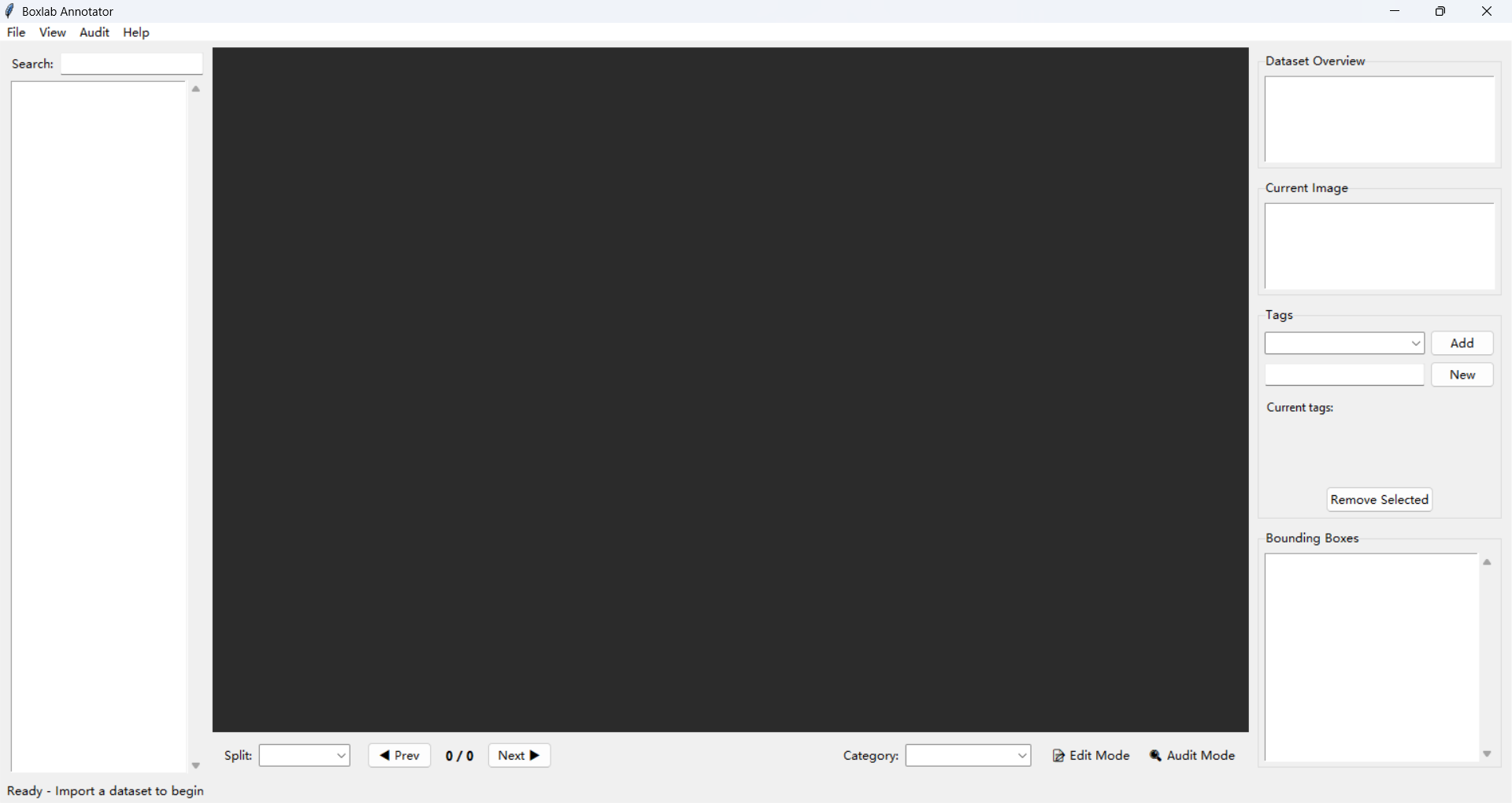 The BoxLab Annotator interface showing all main components
Components
Image List Panel (Left) - Browse all images in current split - Filter by audit status - Search functionality - Visual status indicators
Canvas (Center) - Display images with annotations - Edit bounding boxes - Zoom and pan controls - Selection and resizing
Control Panel (Center Bottom) - Navigation buttons - Split selector - Edit mode toggle - Category selector - Audit controls
Info Panel (Right) - Image metadata - Annotation statistics - Tag management - Audit information
Status Bar (Bottom) - Current operation status - Active image information - Modification indicators
Keyboard Shortcuts
Navigation
View
Ctrl + Mouse Wheel    Zoom in/out
Mouse Wheel           Scroll vertically
Shift + Mouse Wheel   Scroll horizontally
Ctrl + 0              Reset zoom
Middle Mouse Drag     Pan view
Editing
Delete                Delete selected annotation
Ctrl + Z              Undo last change
Right Click           Show context menu
Drag Corners          Resize diagonally
Drag Edges            Resize horizontally/vertically
Click BBox            Select annotation
Audit
File Operations
Ctrl + O              Open workspace
Ctrl + S              Save workspace
Ctrl + Shift + S      Save workspace as
Alt + F4              Exit application
Workflows
Import and Browse
- Launch annotator:
-
Import dataset:
- File → Import Dataset...
- Select format (COCO/YOLO/Raw)
- Choose path
- Select splits
- Optionally add initial tags
-
Browse images:
- Use arrow keys or image list
- Switch splits with dropdown
- View annotations and metadata
Annotation Editing
-
Enable Edit Mode:
- Click "Edit Mode" toggle in Control Panel
- Or use checkbox in menu
-
Create annotations:
- Select category from dropdown
- Click and drag on canvas
- Release to create bounding box
-
Edit annotations:
- Click to select
- Drag corners for diagonal resize
- Drag edges for horizontal/vertical resize
- Drag center to move (if enabled)
-
Delete annotations:
- Select annotation
- Press Delete key
- Or right-click → Delete
-
Save changes:
- File → Save Workspace (Ctrl+S)
Audit Workflow
-
Enable Audit Mode:
- Check "Audit Mode" in Control Panel
- Audit controls become visible
-
Review image:
- Check annotations for correctness
- Verify bounding box quality
- Assess image quality
-
Make decision:
- Press F1 to approve
- Press F2 to reject
- Add comment (optional)
- Automatically moves to next
-
Track progress:
- View statistics in Info Panel
- Use audit filter in Image List
- Generate report when complete
-
Export audit report:
- Audit → Export Audit Report...
- Save as JSON file
Workspace Management
Saving Workspace:
# First save (creates .cyw file)
File → Save Workspace As... (Ctrl+Shift+S)

# Subsequent saves
File → Save Workspace (Ctrl+S)
Loading Workspace:
# Open existing workspace
File → Open Workspace... (Ctrl+O)

# Select .cyw file
# Complete state is restored
Workspace Contents:
- Dataset structure
- All annotations (original + edits)
- Audit status and comments
- Image tags
- Current view state
- Split organization
Export Dataset
-
Make changes to dataset (annotations, audits, tags)
-
Export:
- File → Export Dataset...
- Select format (COCO/YOLO)
- Choose output directory
- Select naming strategy
- Configure options
-
Options:
- Copy images: Yes/No
- Naming strategy: original/uuid/sequential/etc.
- Unified structure (YOLO)
-
Audit mode exports:
- Includes audit_report.json
- Filter by audit status (optional)
Features
Image Tagging
Add tags:
- Select image
- In Info Panel → Tags section
- Type tag name
- Press Enter or click Add
Create new tag:
- Type new tag name
- Click "Create New Tag"
- Tag becomes available for all images
Remove tags:
- Click × on tag in current tags
- Tag removed from image
Tag uses:
- Organize images by topic
- Mark images for review
- Filter in image list
- Export subsets
Audit System
Audit Status:
- Pending: Not yet reviewed (gray)
- Approved: Passed review (green ✓)
- Rejected: Failed review (red ✗)
Audit Filter:
- Show All
- Show Pending Only
- Show Approved Only
- Show Rejected Only
Audit Comments:
- Add notes for each image
- Explain rejection reasons
- Track review decisions
- Included in report
Audit Report:
- Total images
- Approved/Rejected/Pending counts
- Per-image details
- Comments
- Timestamps
- JSON format for processing
Auto-Backup
Automatic backup triggers:
- Uncaught exceptions
- Application crashes
- Critical errors
Backup location:
Backup contents:
- Full workspace state
- All annotations
- Audit information
- Tags
Recovery:
# Launch annotator
boxlab annotator

# Open backup
File → Open Workspace...
# Navigate to ~/.boxlab/backups/
# Select backup file
Integration with CLI
Import → Edit → Export Pipeline
# 1. Import dataset
boxlab annotator
# File → Import → Select COCO dataset

# 2. Edit annotations
# Make changes in GUI

# 3. Save workspace
# File → Save Workspace As → project.cyw

# 4. Export
# File → Export → Select YOLO format
Merge → Review → Export Pipeline
# 1. Merge datasets via CLI
boxlab dataset merge \
  -i data/ds1.json coco \
  -i data/ds2.json coco \
  -o data/merged

# 2. Review in annotator
boxlab annotator
# File → Import → Load merged dataset

# 3. Verify quality
# Enable audit mode
# Review images

# 4. Export final
# File → Export → Select format
Convert → Verify → Audit Pipeline
# 1. Convert format via CLI
boxlab dataset convert input.json -if coco output -of yolo

# 2. Verify in annotator
boxlab annotator
# File → Import → Load converted dataset

# 3. Audit for errors
# Enable audit mode
# Check conversions

# 4. Re-export if needed
# File → Export
Tips and Best Practices
1. Save Frequently
2. Use Audit Mode for Quality Control
# After importing:
1. Enable Audit Mode
2. Review systematically
3. Mark issues
4. Export report
5. Fix issues
6. Re-audit
3. Organize with Tags
# Create tag system:
- quality:high, quality:low
- source:camera1, source:camera2
- status:needs_review
- difficulty:hard
4. Leverage Workspaces
# Save intermediate states:
project_initial.cyw       # After import
project_annotated.cyw     # After annotation
project_audited.cyw       # After audit
project_final.cyw         # Before export
5. Use Keyboard Shortcuts
# Efficient navigation:
→ to next
F1 to approve
F2 to reject
→ to next (automatically)

# Fast audit:
Review → F1/F2 → Next → Repeat
6. Zoom for Precision
7. Filter Smart
# Image list filters:
- Filter by split
- Filter by audit status
- Search by filename
- Combine filters
Reference
- Annotator API - API documentation
- CLI Overview - General CLI guide